exaSound posted on June 07, 2018 12:54
Audirvana Plus is a high‐end audiophile player for the Mac platform. The most recent releases of Audirvana Plus can stream audio to exaSound PlayPoint players over wired and wireless home network connections. Streaming is performed using the UPnP/DLNA protocol. Audirvana Plus takes the roles of control point and ad-hoc media server. The PlayPoint device works as renderer or audio end point.
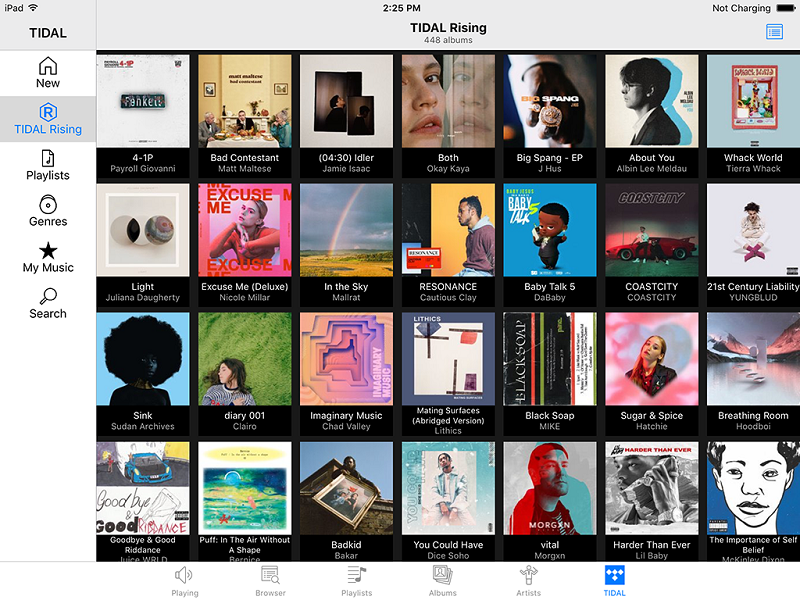
We are very excited about using Audirvana with the PlayPoint players. The user interface is stylish and simple to use. Audirvana Plus offers convenient library manager and remote control app for iPads and iPhones. Users can manage and search in a unified environment their local music libraries and HighRes online music services including:
- TIDAL: Masters MQA streaming
- Qobuz: Hi-Fi and HiRes streaming
- HIGHRESAUDIO VirtualVault
Audirvana Plus implements the MQA Core Decoder to unlock the high resolution of MQA encoded audio streams and files.
The MQA decoding, audio filters such as upsampling to PCM and DSD and AudioUnits effects for equalization and digital room correction are performed before sending the audio stream to the PlayPoint player. This makes it possible to have DSP processing on MQA-encoded streams, a scenario that is usually unavailable when MQA is decoded by the DAC.
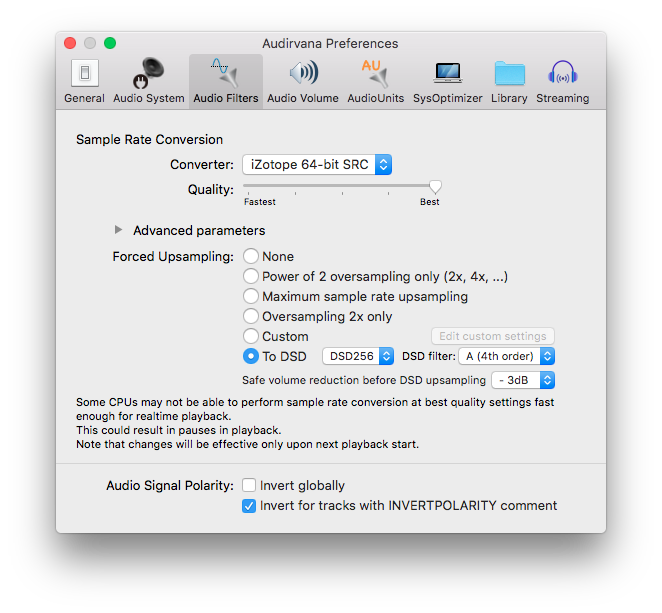
exaSound PlayPoint network audio players are optimized for minimum processing and bitperfect streaming. Audirvana Plus offers to PlayPoint users an array of advanced audio processing options. Upsampling options include SoX or iZotope 64bit SRC and PCM to DSD conversion. Wide range of Audio Unit effect plugins available on the market can be used to make equalization, room acoustics correction and spatialization for listening with headphones. Audirvana's SysOptimizer configures your Mac for optimal audio processing.
Audirvana supports most popular PCM and DSD audio formats, including FLAC, DSF, SACD ISO, Monkey Audio APE, AIFF, WAVE, WAVPACK, Cue Sheets and Apple Lossless. Sampling rates support includes PCM up to 768KHz and native DSD up to 24.576MHz (DSD512).
At this time Audirvana Plus can stream only two-channel content over UPnP. For multichannel applications you can use Audirvana with your exaSound DAC over a USB connection.
Follow this step-by step guide to configure Audirvana Plus for use with exaSound DACs.
- Download and install the latest version of Audirvana Plus 3 from Audirvana.com. You can evaluate it for free for 15 days.
- You need to have a working PlayPoint player connected on the same network with the computer running Audirvana Plus 3.Note that there should be only one network connection between them, otherwise the UPnP connection may not work.
- The first time you start Audirvana you will see the Setup Wizard.
- From the drop-down on the first screen select your PlayPoint as a playback device and click Next.
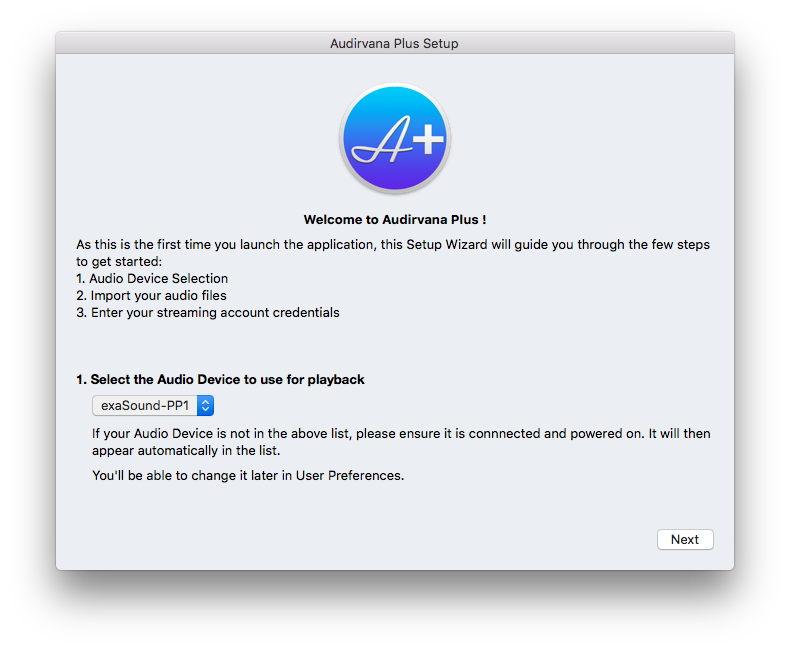
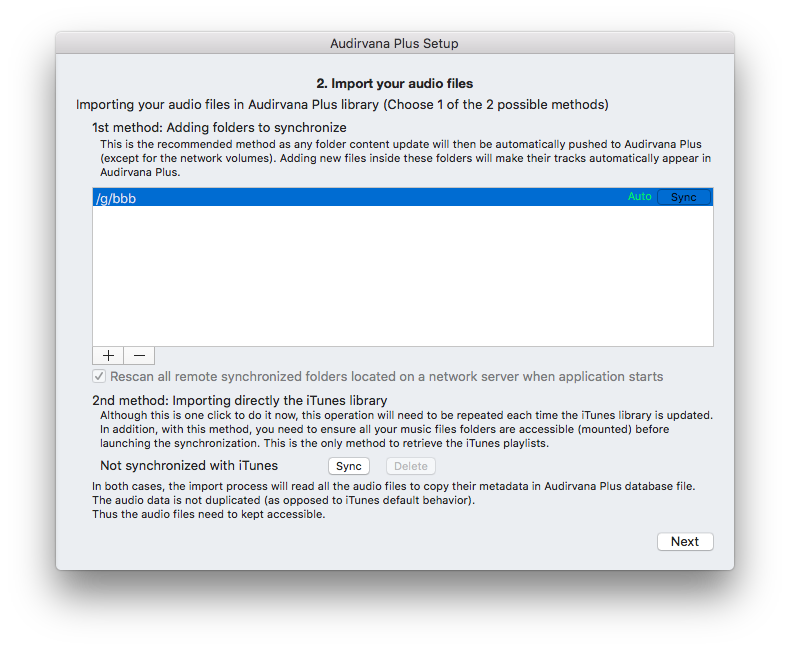
- Follow the instructions on the second wizard screen to configure the Audirvana music library. Use the "+" button to add folders with music files to the library. Click Next when you are ready.
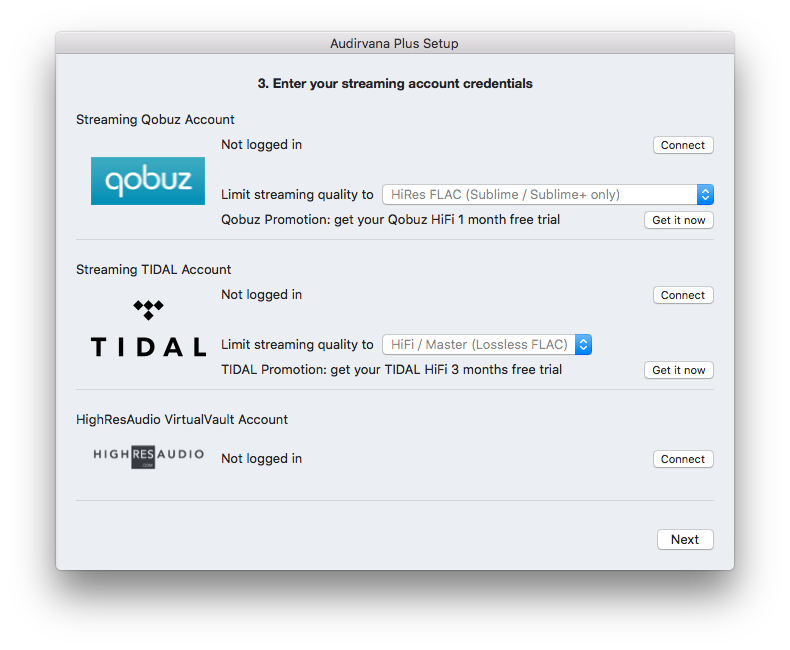
- On the third wizard screen you can configure Audirvana to access the online services Quobuz, Tidal and HighRezAudio Virtual Vault. Click Next when you are ready. This step concludes the basic Audirvana setup. Make sure the PlayPoint volume level is safe. You can control the volume from the PlayPoint touch-screen and from Audirvana. Browse around the Audirvana library to familiarize yourself with the user interface and play some music.
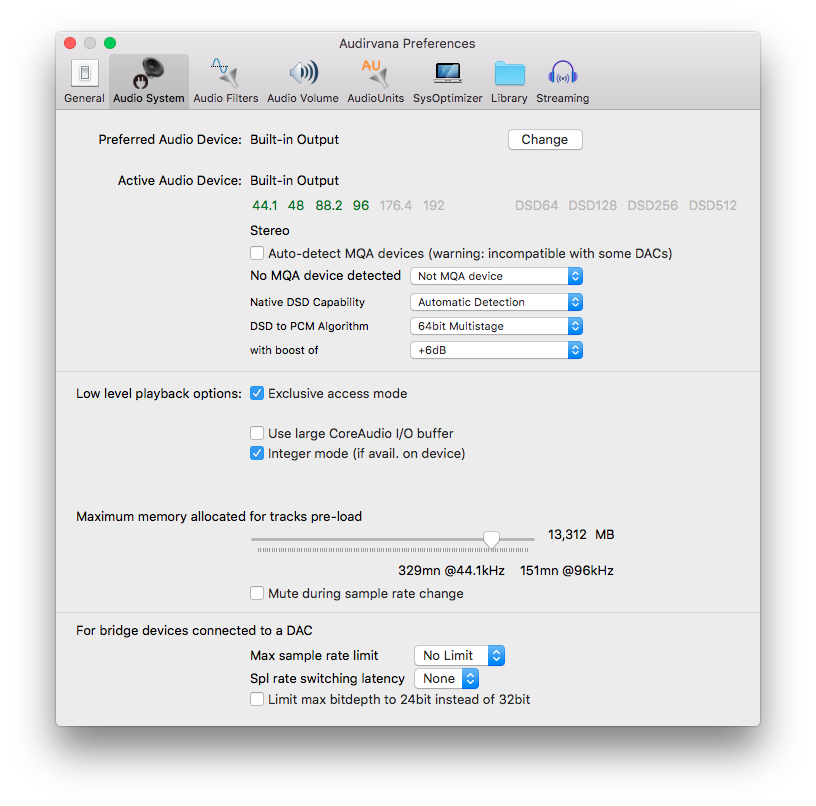
- For more advanced users the best way to configure Audirvana for use with PlayPoint Players is to use the Preferences window. You will find it under Audirvana Plus -> Preferences. Select the Audio System tab. If you haven't done so, you can select the Preferred Audio Device by clicking the Change button.
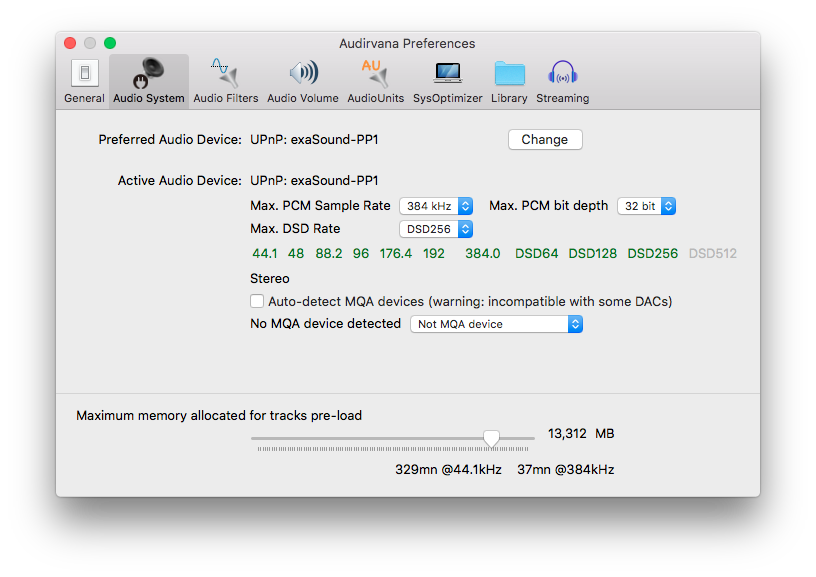
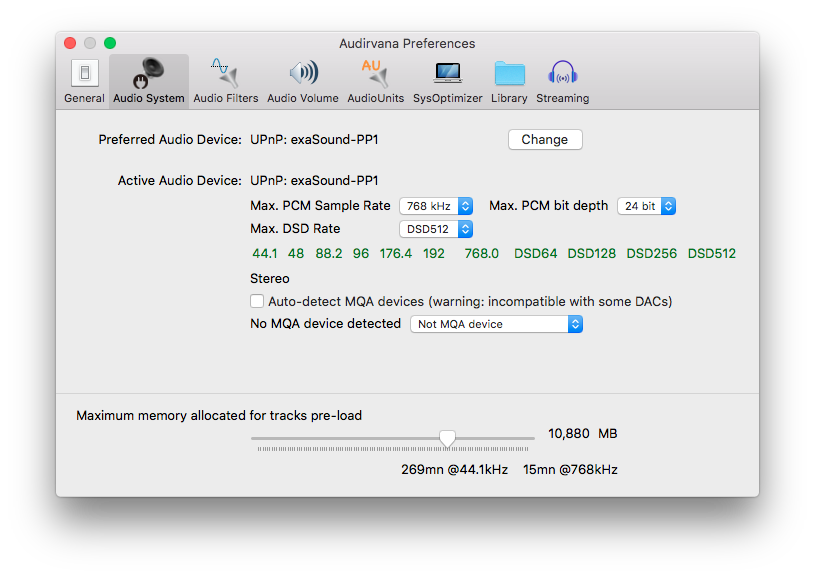
- Select the Max. PCM Sample Rate, Max. PCM Bit Depth and the Max. DSD rate. The screenshot below shows the values used with exaSound DACs.
- If you are using a third party DAC, select the appropriate values for it. The next screen shows values for use with iFi Micro iDSD.
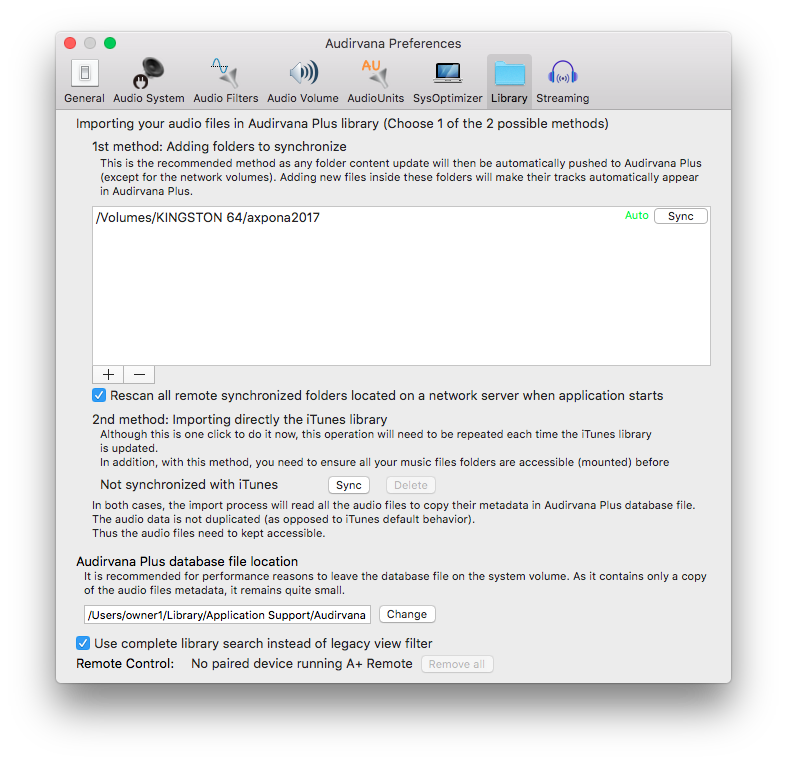
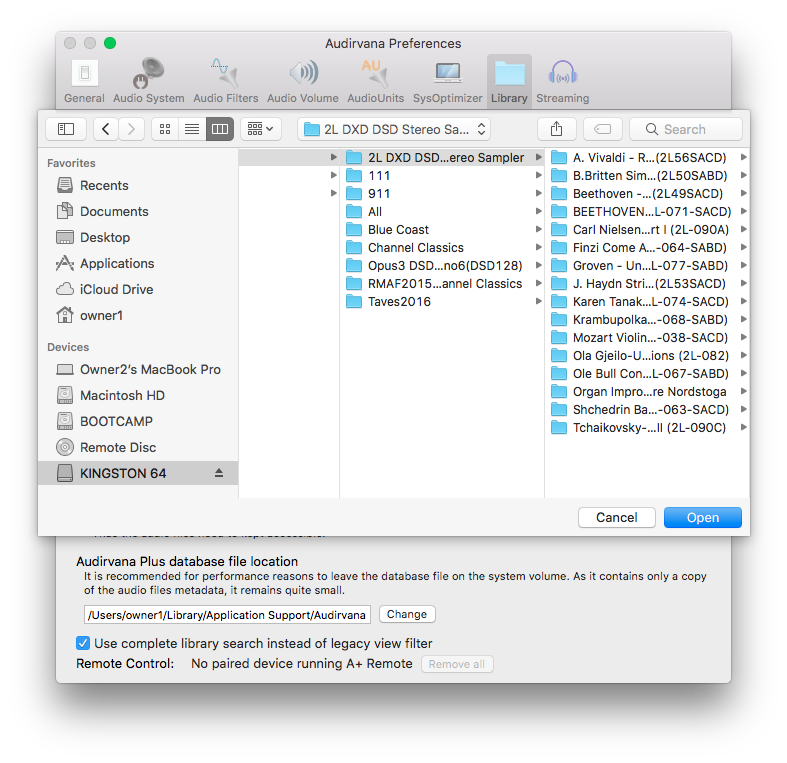
- If you haven't done so, configure your Audirvana library. Use the "+" button to add folders with music files to the library.
- By default Audirvana is setup for bit-perfect playback. Optionally you can configure up-sampling and PCM-DSD conversion on the Audio Filters tab.
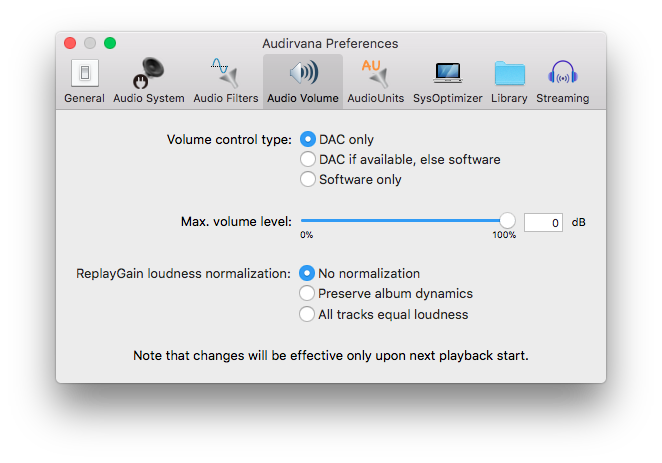
- Use the default volume settings with exaSound DACs. Volume can be controlled from the DAC, from the PlayPoint player, from the Audirvana window on the computer screen and from the Audirvana Remote app. In this case volume sliders on all screens are synchronized and volume control is performed by the DAC hardware.
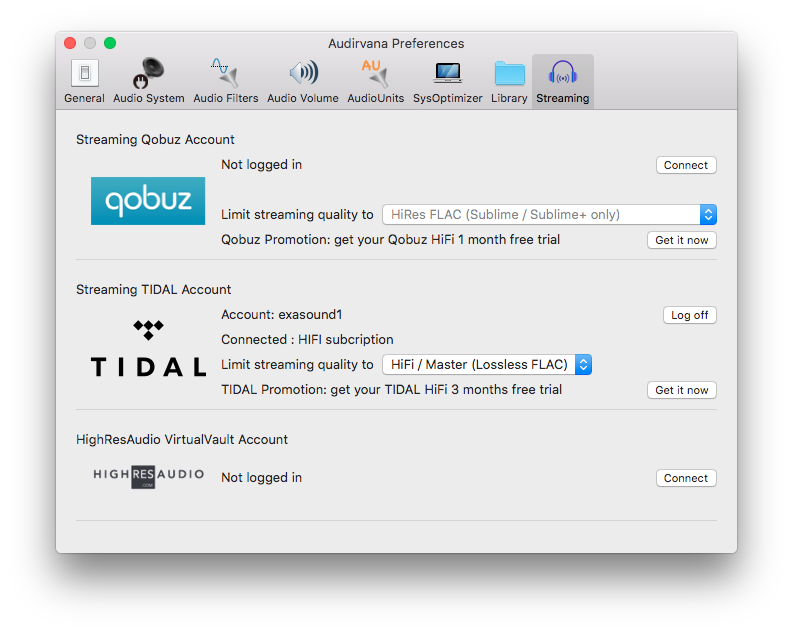
- Use the Streaming tab to enter your login credentials for Quobuz, Tidal and HighResAudio VirtualVault.
- Play some music. Note the green INT icon to the right of the playback bar. It indicates bit-perfect integer audio streaming over UPnP between Audirvana and the PlayPoint Player.
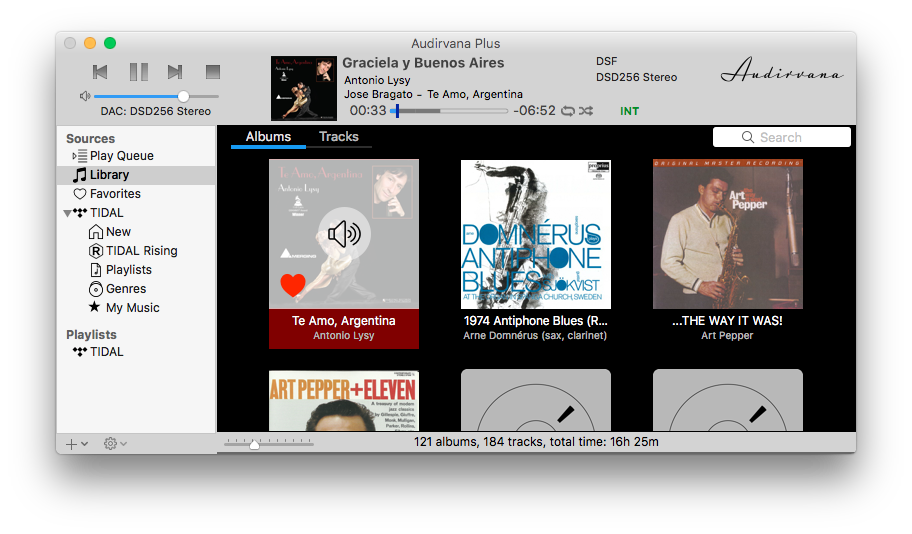
- Optionally you can install Audirvana Remote from the App store. Start the app and tap on the Settings icon in the top left corner. If you haven't done so, start Audirvana. The Audirvana Remote app will display the Pairing prompt. Enter the number displayed on the Audirvana Plus window.
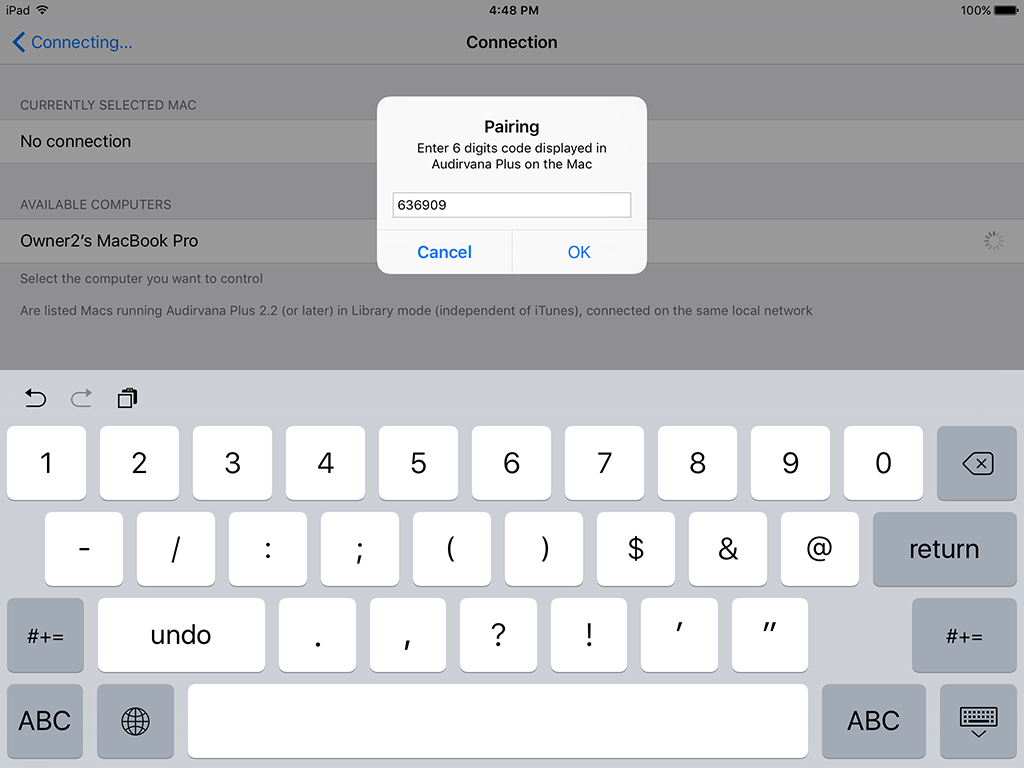
- You are now ready to control the PlayPoint with Audirvana Remote from your mobile device. You can browse and search the Audirvana library and you can control the volume from the convenience of your listening location.